Boost Your Productivity with Microsoft Outlook and OneNote
If you’re looking for a simple way to get more done each day, combining Microsoft Outlook with OneNote is a powerful place to start. These two apps work seamlessly together, helping you stay organized, keep track of information, and maintain control over your schedule.
Outlook handles email, calendars, tasks, and contacts, while OneNote serves as a flexible digital notebook for capturing ideas, meeting notes, project plans, and more. When used together, they create a workflow that’s efficient, intuitive, and easy to maintain.
What Is Microsoft Outlook?

Microsoft Outlook is part of the Microsoft Office suite and is widely used for managing communication and schedules. It’s more than just an email app—it brings powerful productivity tools into one place.
Key Features
- Rich formatting
- Attachments
- HTML support
- Voting buttons
- Integrated meeting requests
Calendar
- Appointments and recurring events
- Shared calendar access
- Meeting scheduling features
Task Management
- Create tasks
- Set reminders
- Add due dates
- Track progress
Contacts
- Centralized contact list
- Group management
Notes & Journaling
- Quick notes
- Activity logs
Outlook helps you keep your communication and schedule aligned, which is essential for staying on top of your day.
What Is OneNote?
OneNote works like a digital binder that adapts to whatever you need it for—ideas, sketches, class notes, project outlines, research, or meeting summaries.
Key Features Include:
- Multiple note formats: handwritten, typed, audio, image, video
- Syncs across devices
- Seamless sharing and collaboration
- Searchable notebooks
- Optional password protection
- Tags, markers, and reminders
- Export to PDF or other formats
Whether you use it for quick thoughts or long‑term planning, OneNote keeps everything neatly organized and accessible.
How to Use Outlook and OneNote Together
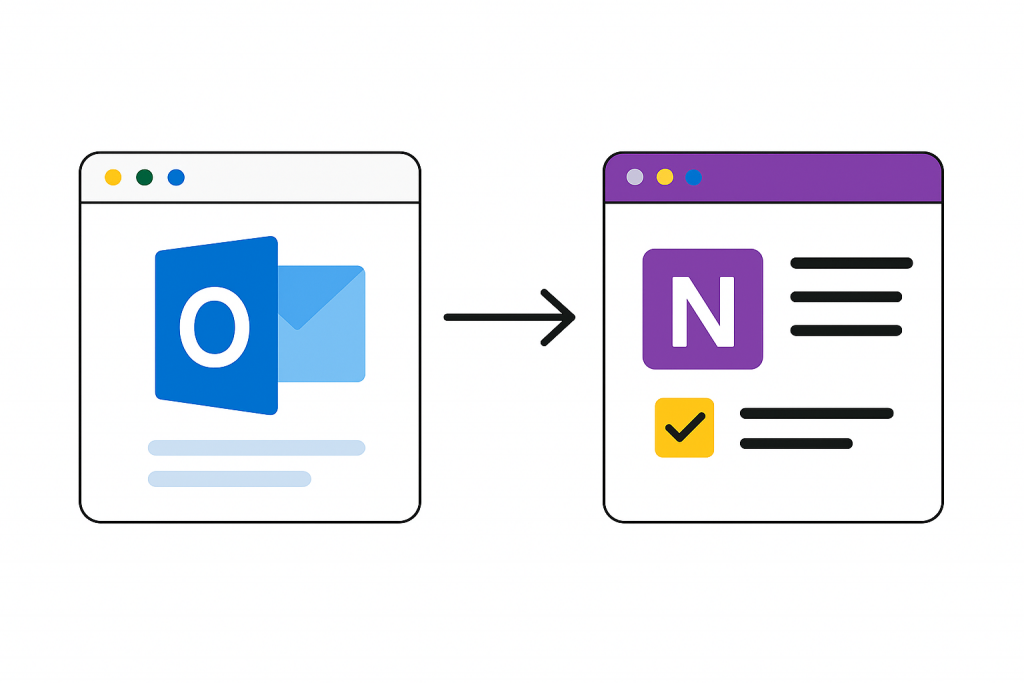
Outlook and OneNote become even more powerful when used together. Here are two key ways to integrate them for a smoother workflow:
1. Send Emails Directly to OneNote
If an email contains details you need to save—project information, instructions, receipts, research—you can send it straight to OneNote.
Just open the message in Outlook and select “Send to OneNote.”
Choose the notebook and section, and it will appear there instantly.
This makes it easy to organize important communication alongside your notes.
2. Use OneNote for Meeting Notes
During meetings, capture notes directly in OneNote. When you’re done, you can quickly email those notes to the team using Outlook.
This ensures everyone has the same information and keeps meeting documentation neatly stored where it’s easy to find later.
Conclusion
If you want a simple way to boost productivity without adding complexity, Outlook and OneNote make a great pairing. They’re quick to set up, easy to integrate, and packed with features that help you manage email, schedules, tasks, and notes all in one connected system.
Once you start using them together, you’ll notice how much smoother your day becomes.
About The Author
